
Simple Search by Time Series Name
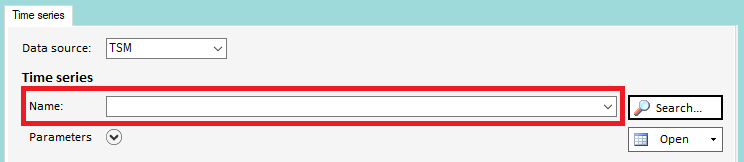
By typing into the "Name"-field in the time series plug-in, a list of all time series with a matching name is displayed for selection.
Advanced Search
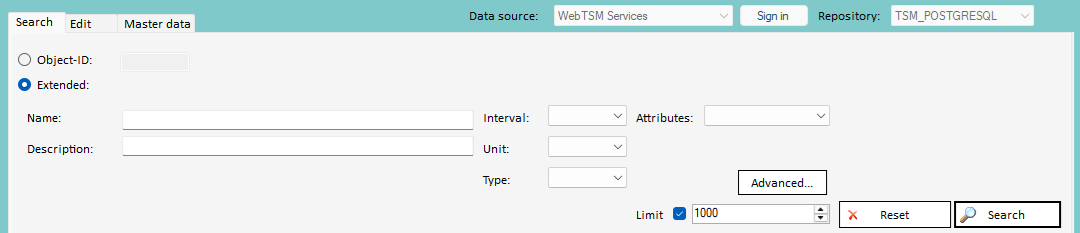
Clicking on the "Search"-Button opens a new window for entering more complex criteria.
|
Object-ID |
The unique ID of the time series |
|---|---|
|
Name |
The unique name of the time series |
|
Description |
The description of the time series |
|
Interval |
The interval of the time series |
|
Unit |
The unit of the time series |
|
Type |
The type of the time series
|
|
Attributes |
The attribute(s) assigned to the time series |
|
Advanced…
|
Opens a dialog where an advanced attribute search expression can be entered. |
Additional information relating to search criteria:
-
The fields are not case sensitive.
-
By default a wildcard is attached to the end of the name/description. So searching for "Test" will return the time series "Test", "Test time series" and so on. This can be changed, by setting <TimeSeriesSearchExact>false</TimeSeriesSearchExact> in the HAKOM.Config to "true". Note that this is not the case with attributes. Here you always have to put the wildcard manually!
-
If you are searching for a substring, that does not start at the beginning of the name/description, you have to use a wildcard at the beginning of the substring.
e.g.: Searching for "%Test" will return all time series containing "Test" anywhere in their name/description, like "DailyTest_1", "12_Test" and so on.
Details for attributes as search criteria:
A time series can be assigned any number of attributes.
The Attributes drop down gives you a list of all attributes saved in the database. If you choose one of those, another drop down appears and an additional attribute can be chosen. These two attributes are then combined with a logical "And" for the search. This means a time series has to be assigned both attributes to show up on the list of results.
When connected to a HAKOM PowerTSM HTTP Data Source (API version 4.0 or higher), the Advanced... button becomes available for creating custom attribute queries with additional filtering capabilities, including OR logic using the oneof operator. The advanced query works alongside standard attribute filters and node-based search.
When searching for time series by attribute you may also set an attribute value. Depending on the type of the attribute the value you want to search for has to be defined accordingly:
-
Category: attributes of type category don't have a value
-
Date: ISO 8601 standard
-
List: String
-
MultiChoice: String
-
MultilineText: String
-
Numeric: Number
-
TimeSeries: "TSM.XXX NAME" where TSM represents the database connection, XXX the ID and NAME the time series name
-
TimeSpan: D.HH:mm:ss
-
Text: String
-
YesNo: true/false
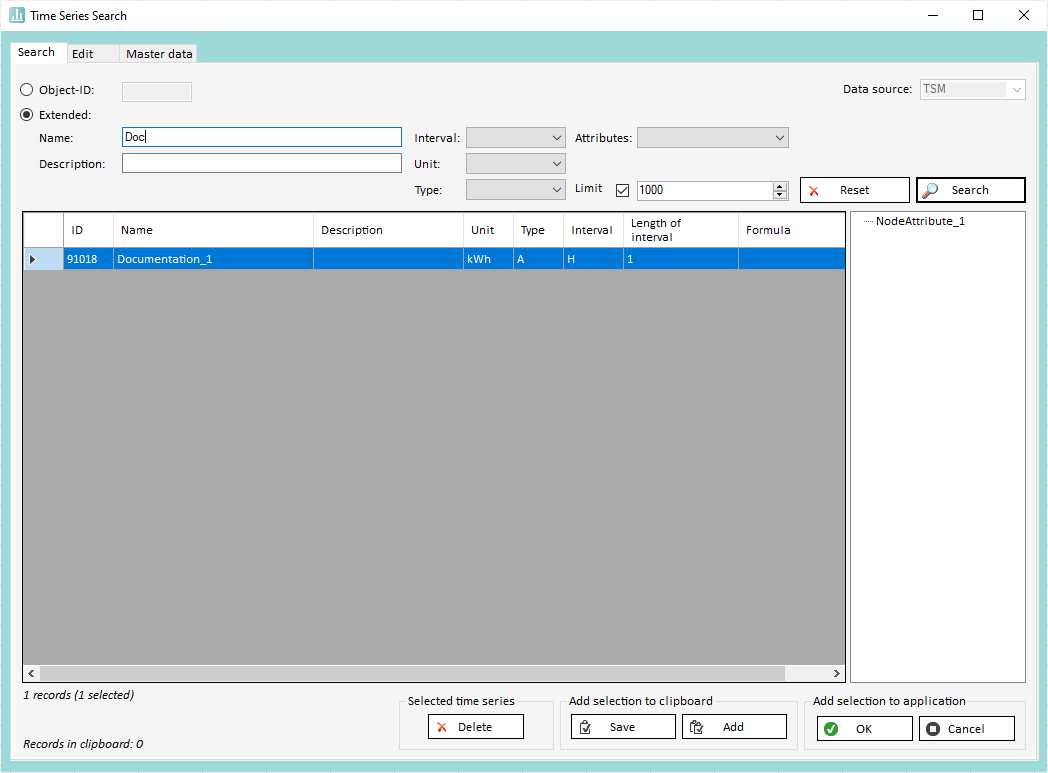
After clicking on "Search" the matching results are displayed in the table underneath the form.
Adopting Search Results for Further Processing
You may adopt one or more time series back into the main window for loading/exporting time series data.
Adopting a Single Time Series from the Result
There are two ways to select just a single time series into the main window.
-
Double-clicking on the entry in the table
-
Selecting the entry and clicking on
Adopting Multiple Time Series
Multiple entries can be selected by holding down the Control Key ([Ctrl]). Ranges may be selected by holding down the [Shift] key.
The selection is confirmed by clicking on "OK".
Adopting Multiple Time Series from Separate Search Results
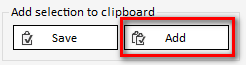
After performing a search and selecting the desired time series, instead of clicking "OK", click on the "Save"-button in the area marked "Add selection to clipboard"
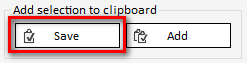
Afterwards, the search criteria can be altered to find more time series. Once additional time series have been found and selected in the grid, simply click on "Add" to add them to the selection.
When all the desired time series have been added to the clipboard, adopt them into the main window by clicking on "OK".