Using the TSM .NET API effectively requires that you have access to an already prepared database. A guide for setting up the database can be found here: Installing a TSM Database
Using the Framework with Visual Studio
Create new Package Source
If not already available, create a new package source under Tools - Options - Nuget Package Manager.
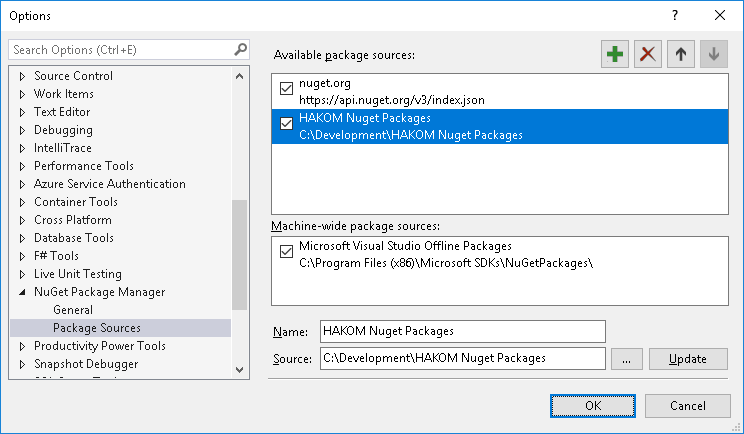
Afterwards copy the provided file "HAKOM.Framework.Core.{version}.nupkg" in the given folder.
Integrate HAKOM Framework in a Project
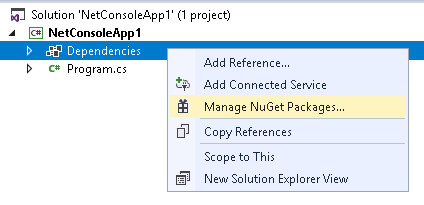
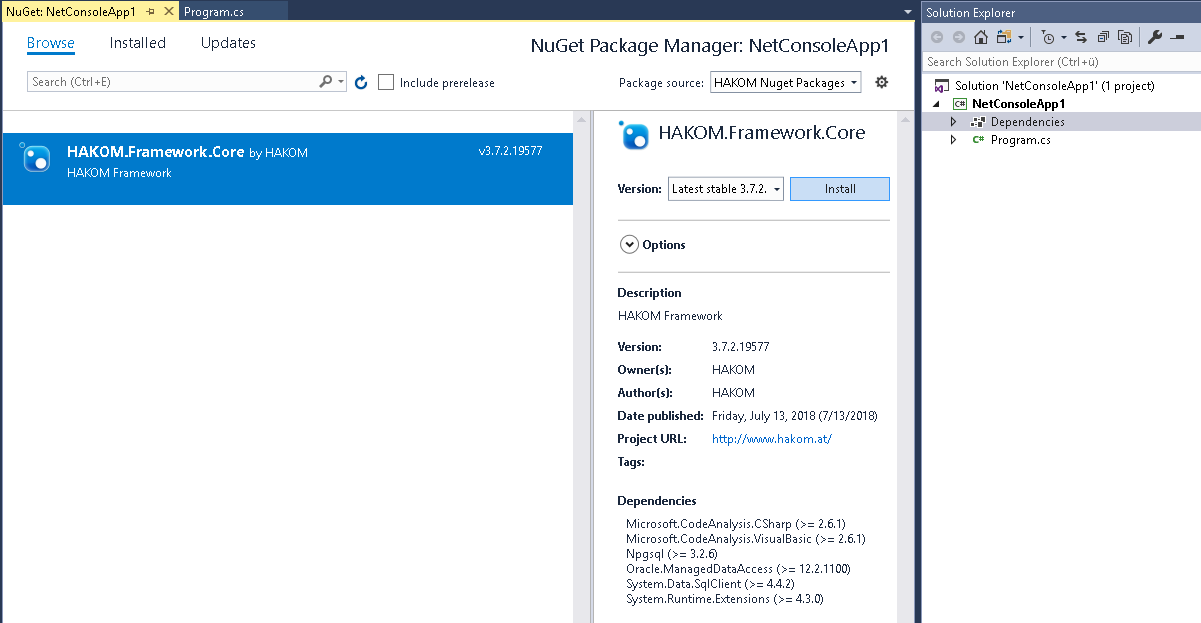
The Nuget package has to be added as a package reference, otherwise the compiling of formula time series will result in assembly binding problems.
The default package format can be configured here in Visual Studio:
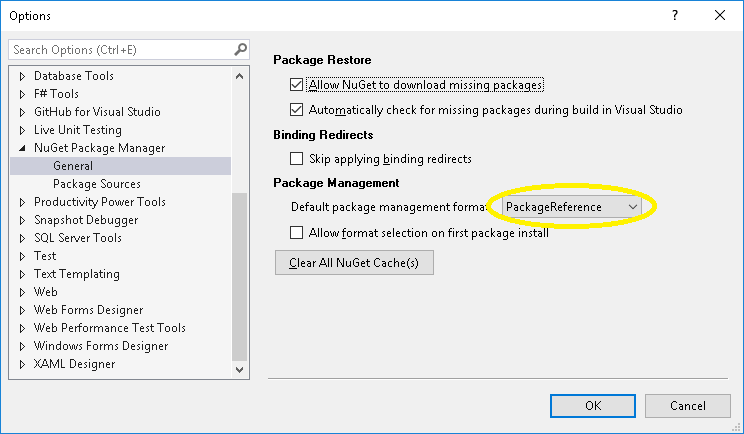
Here you can find instructions on how to migrate from packages.config to PackageReference: Migrate from packages.config to PackageReference
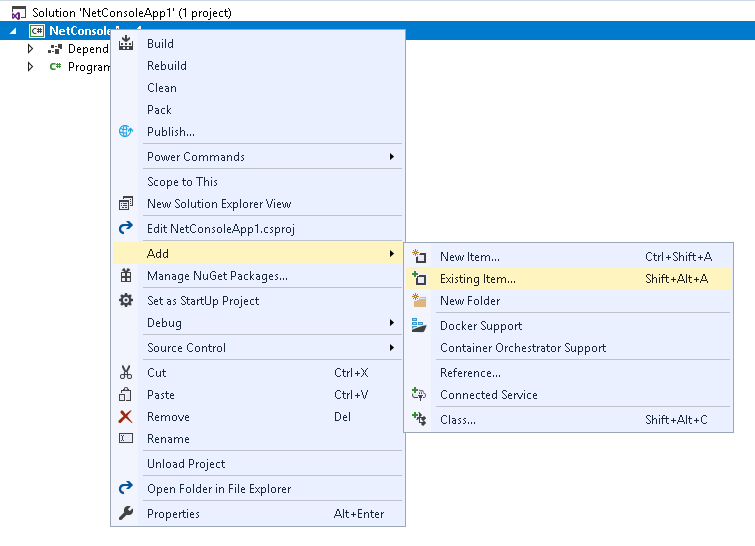
Adding HAKOM.Config and HAKOM.License
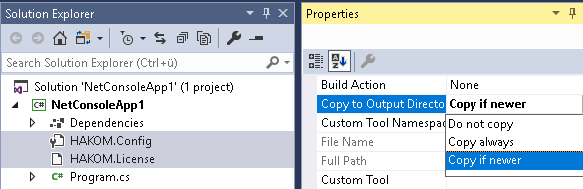
A textfile called "HAKOM.Config" as well as a valid "HAKOM.License" file has to be added to the project and copied into the output folder during compilation.
Adding EvalComponents (optional)
The default EvalComponents are copied automatically since version 3.7.6. Other optional or custom-made functions need to be added as follows:
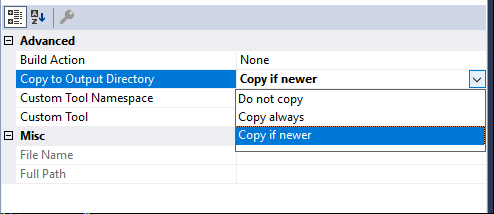
For each file the option "Copy to Output Directory" "Copy if newer" has to be configured.