
Creating a New Time Series
In order to create a new time series, first open the time series search window, then switch over to the "Edit" tab. If a time series was selected on the search tab, its data will be filled into the form. You can clear the form for a new time series by clicking on "New":
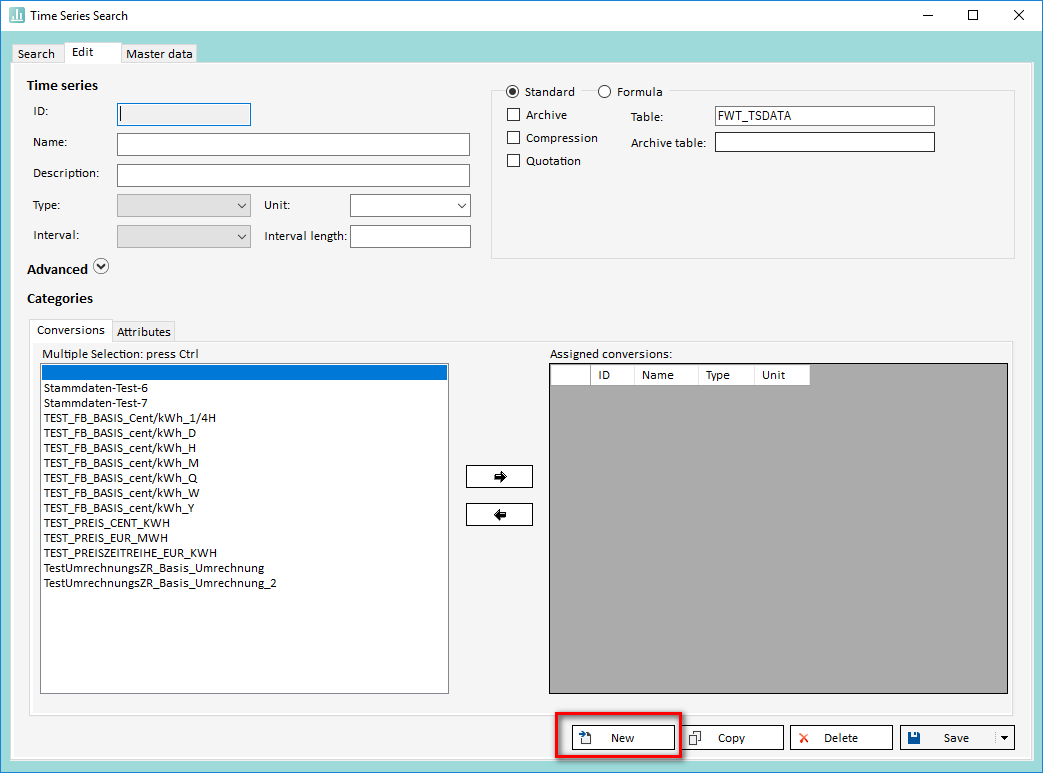
Afterwards the field "Table" is automatically filled with a default value. You may of course overwrite it. The following fields have to be filled:
-
Name
-
Unit
-
Type
-
Interval
-
Interval lenght
-
Archive table
All other fields, as well as the assignment of attributes/conversion time series are optional.
Save-options
-
Archive
When this checkbox is active, data archiving is active. You can find further information regarding this feature under Audit. -
Compression
This checkbox activates the compression function. This feature reduces the amount of data saved and the time for saving data by storing chunks of flag/value pairs binary coded into the value field. -
Quotation
This checkbox activates the quotation feature. You can find further information regarding this feature under Quotations.
Depending on the save-option you have chosen the fields "Table" and "Archive table" will be filled with default data.
You have the possibility to change the default tables in the HAKOM.Config:
<HAKOMConfiguration>
	<products>
		<HAKOMFramework>
    		<settings>
        		<DefaultDataTables>
                		<DefaultTable></DefaultTable>
                		<DefaultArchiveTable></DefaultArchiveTable>
                		<DefaultVersionTable></DefaultVersionTable>
                		<DefaultVersionArchiveTable></DefaultVersionArchiveTable>
                		<DefaultCompressedTable></DefaultCompressedTable>
                		<DefaultCompressedArchiveTable></DefaultCompressedArchiveTable>
                		<DefaultQuotationArchiveTable></DefaultQuotationArchiveTable>
                		<DefaultQuotationCompressedArchiveTable></DefaultQuotationCompressedArchiveTable>
            		</DefaultDataTables>
    		</settings>
		</HAKOMFramework>
	</products>
</HAKOMConfiguration>
If theses tags are not present or do not contain a value, the HAKOM default tables will be applied.
Saving time series
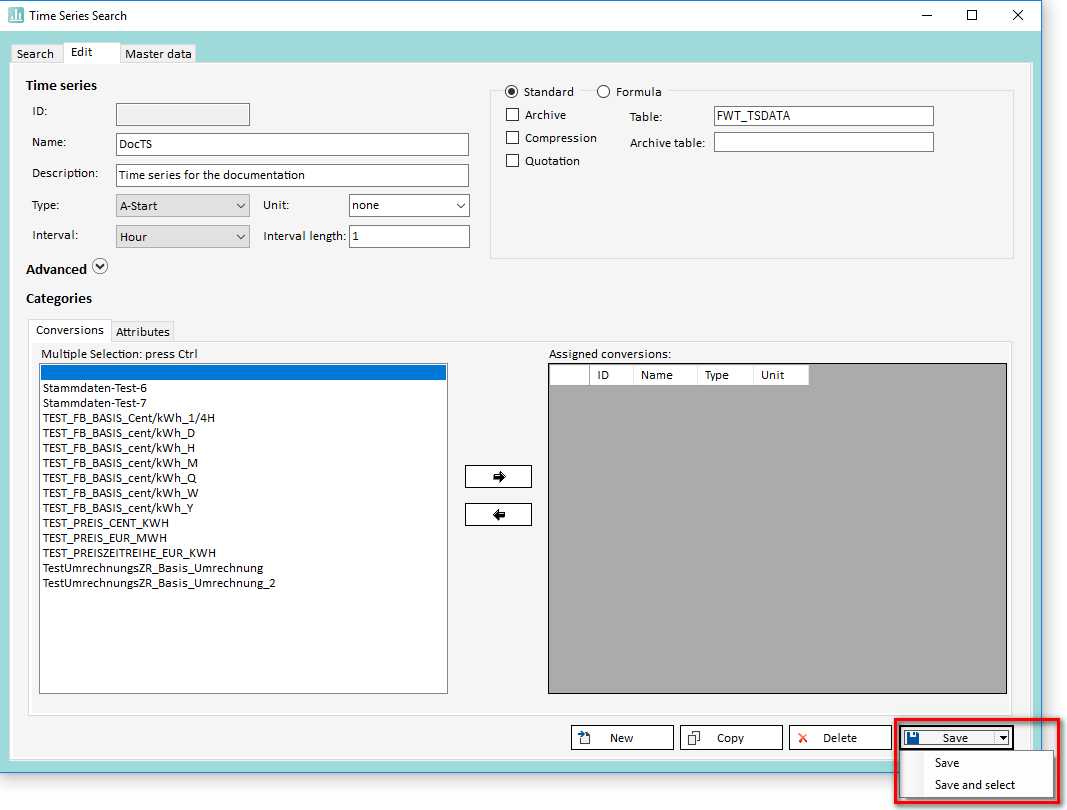
Saving a time series can be done in two ways, either by clicking directly on the "Save" button or by clicking on the small arrow next to this button (see illustration below). This opens a menu that allows you to choose between two options:
-
Save
Same effect as clicking directly on the "Save" button. -
Save and select
Saves the time series and selects it directly in the time series search.
Editing Existing Time Series
Editing a time series starts with selecting the target time series in the "Search" tab, then switching over to the "Edit" tab. All settings for the selected time series are automatically filled into the form. After having made changes, click on "Save".
to persist the modified time series to the data base.
Editing Formulas
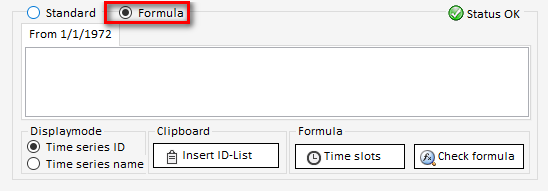
When creating or editing a time series, you may chose to either create a "Standard" time series, or a "Formula" time series. Selecting the latter displays additional fields for entering and validating the formula that should be used to generate the data for the time series.
Assignment of Conversion Time Series
A time series can be assigned any number of conversion time series.
Assigning conversion time series
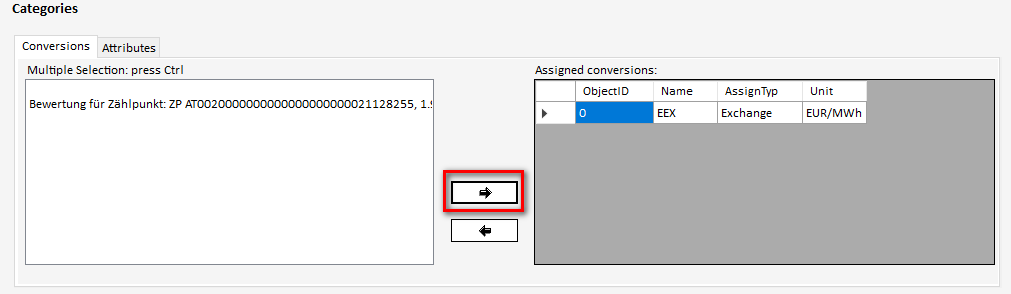
Choose a time series from the list and click on arrow-right button to pass it to the list of assigned conversions. It will be displayed with the Type "Exchange":
By clicking on "Save" your changes will be saved.
Remove an assigned conversion time series
Select the conversion time series that should be removed from the assigned conversions and click on the arrow-left button:
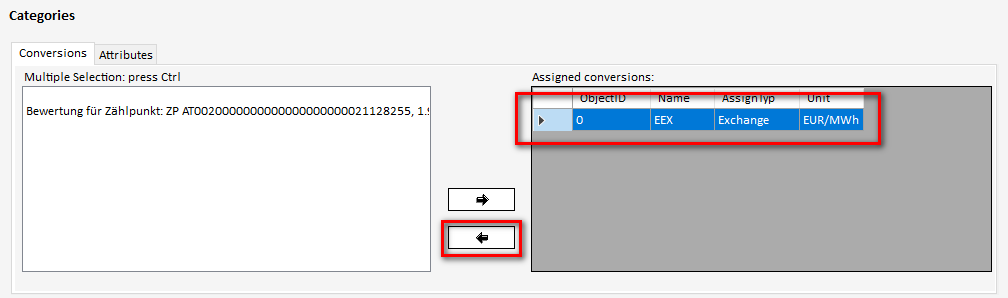
The selection will be removed from the area "Assigned conversions".
By clicking on "Save" your changes will be saved.
Assignment of Attributes
Attributes can be assigned to time series either manually or via attribute templates in the edit tab in the Time Series Search GUI.
Assign manually
To assign one or more attributes manually klick on the green "+" symbol:
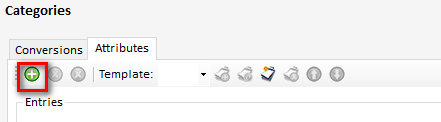
A window will open in which you can select the desired attributes. Confirm the selection with "OK".
Depending on the type of the chosen attributes.
Assign attributes via attribute template
If a time series was assigned one or more attributes a new attribute template can be created by clicking the button "New template":
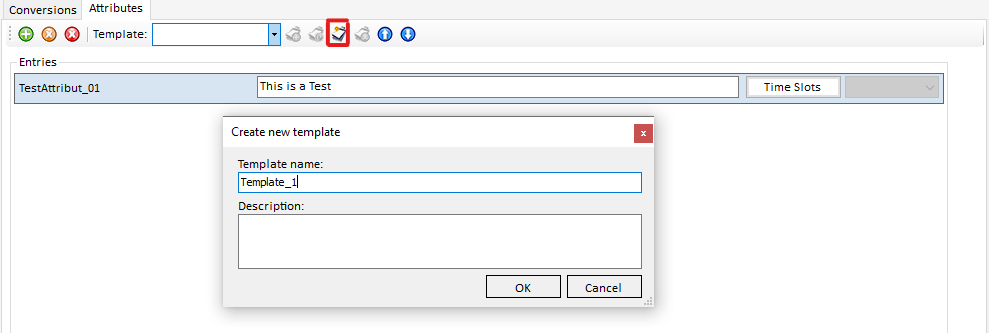
After confirmation, the template is listed in the drop down "Template". There are two options to assign an attribute template to a time series:
-
"Add template": adds the attributes of the template to the already assigned attributes.
-
"Switch template": removes the assigned attributes and assigns the one from the template

A template is deleted by clicking on the button "Delete selected template":
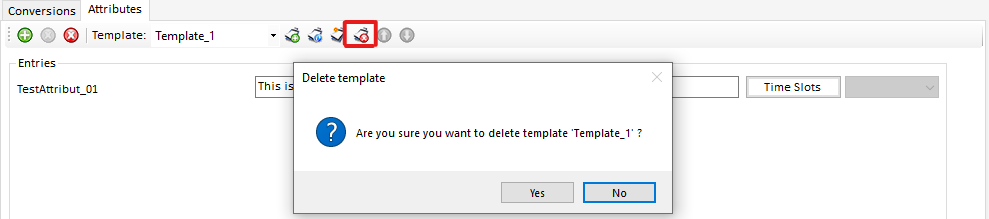
Time Slots on Attributes
It is possible to assign attribute values that change over time. This can be achieved by clicking on the "Time Slots" button.

There you can add, edit and delete time slots for one attribute assignment.

System Attributes
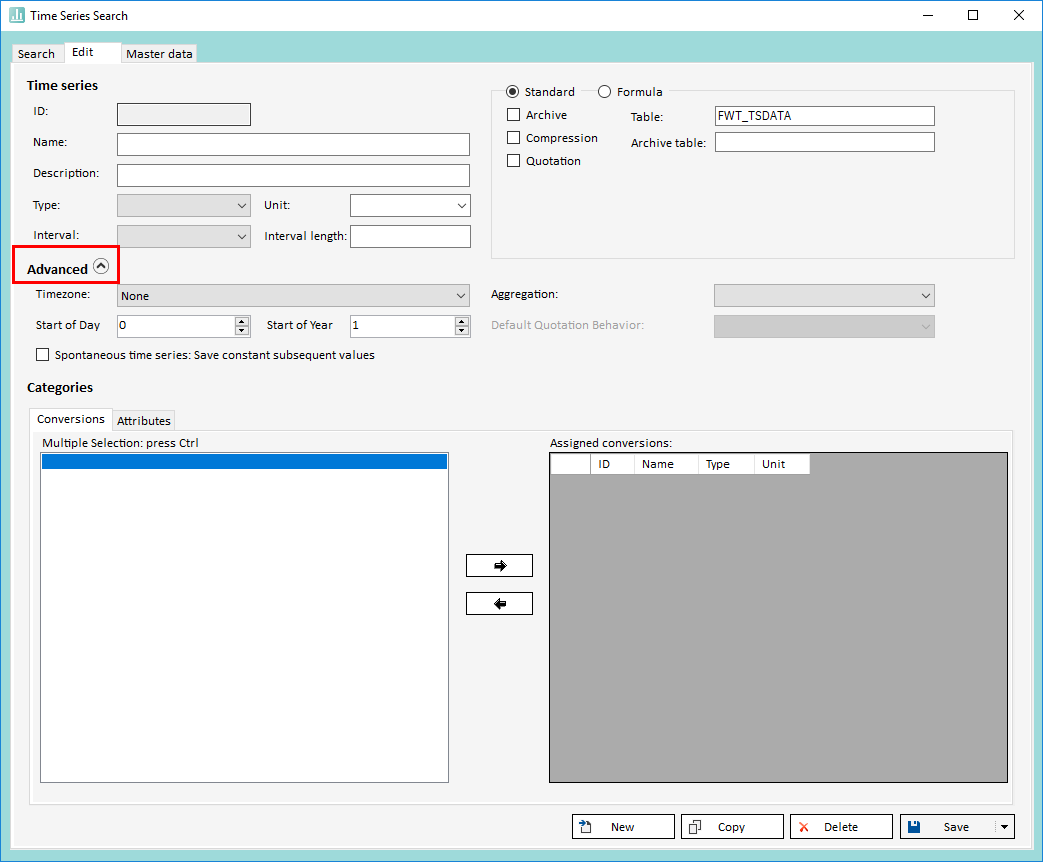
Every time series has an additional set of optional system attributes.
These are:
|
Name |
Description |
Possible Values |
Default Value |
|---|---|---|---|
|
Time zone |
Links a time series data to a time zone. This can influence how data is read/written, especially during transitions from and to daylight savings times. |
A list of all supported time zones can be found here: Reading Data into Excel |
None |
|
Start of day |
Defines the hour which designates the beginning of a day. |
0-23 |
0 |
|
Start of year |
Defines the month that designates the beginning of a year. |
1-12 |
1 (January) |
|
Rule for aggregations |
Controls how data is aggregated accross time. This may be defined by its assigned unit (i.e. average for temperatures, etc). Setting this value overrides the aggregation rule derived from the unit for this particular time series. |
|
null |
|
Default behavior for quotations |
Specifies how data should be read from quotation time series. This overrides the behavior configured as default in the HAKOM.Config configuration file. This only applies to quotation time series. For more information on that particular type of time series, please refer to this page: Quotations |
|
null |
|
Save constant subsequent values |
Specifies whether values that do not change should be saved each time they occur continuously (yes) or whether values should only be saved when they change relative to the previous one. This only applies to spontaneous time series |
|
No |
These values can be set by expanding the "Advanced" section in the "Edit" tab.
Deleting Time Series
In order to delete one or many time series, select them from the list within the "Search" tab, then click on the button "Delete".